 DayHeart
Home › Guide: study
Study in DayHeart: how to set it up and use it
For students and class reps: what the Study tab has, how to set it all up in five minutes, and why classes, homework and exams belong in one place.
Free · No sign-up needed · 24 languages
Why it helps
Your timetable at hand
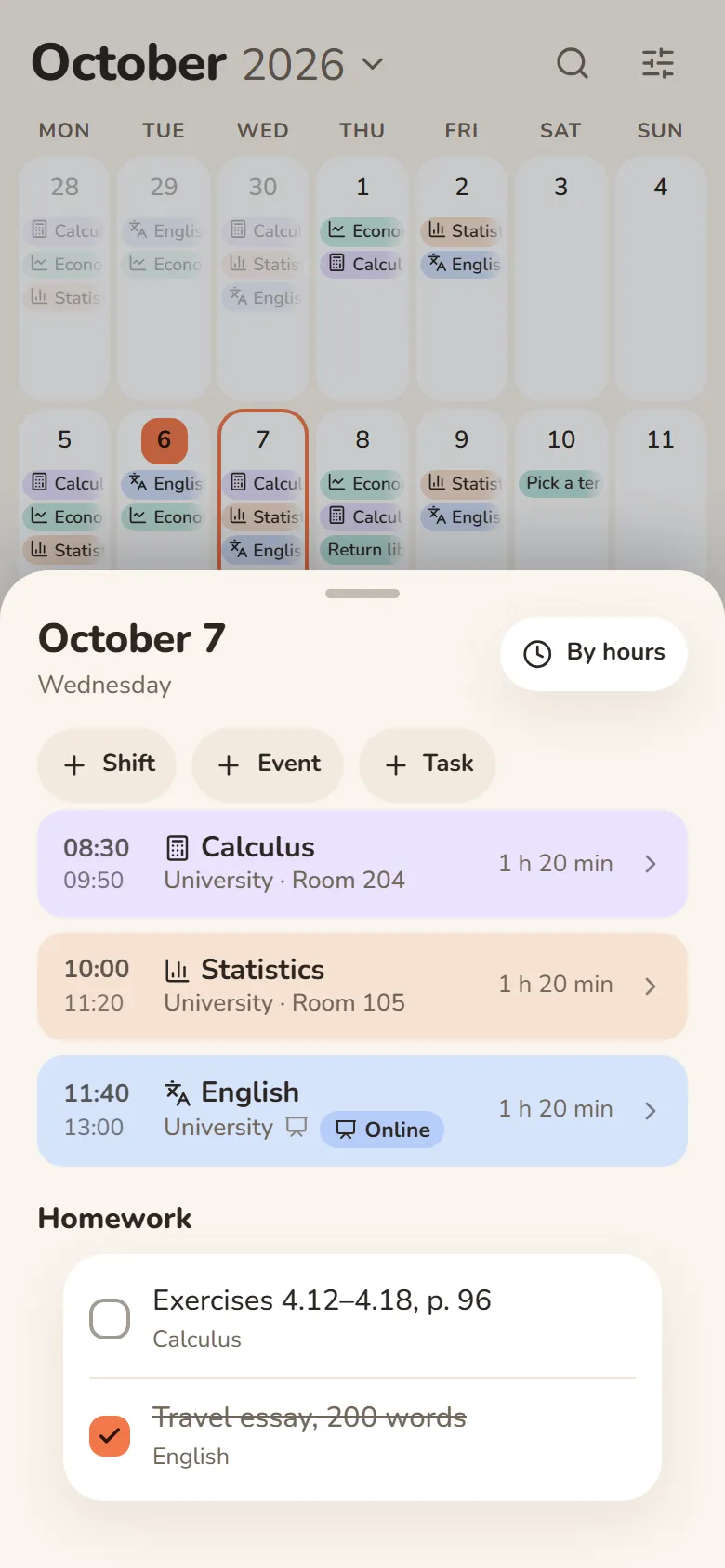
Classes with the time, room and lecture link sit in the calendar next to everything else. Open a day and you know where to go.
Nothing slips
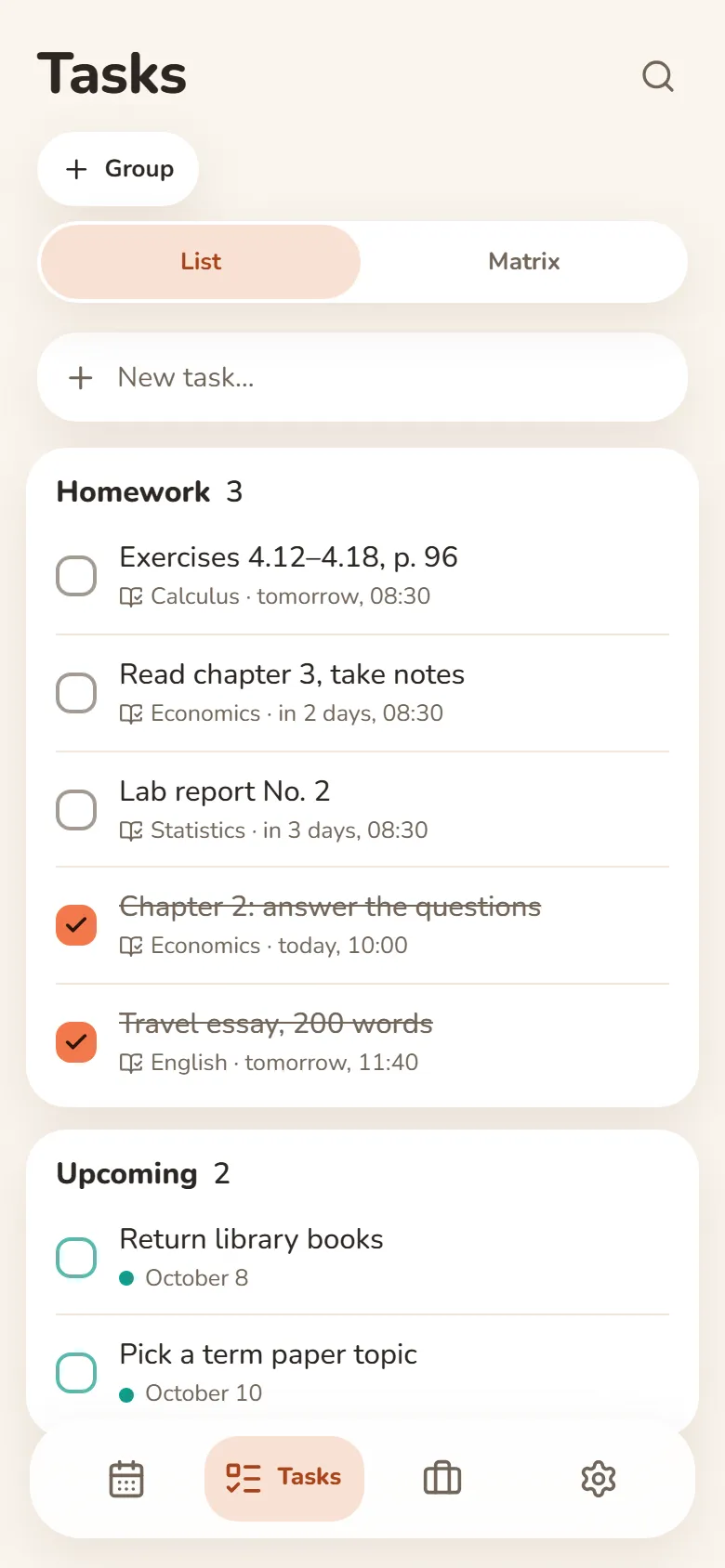
Homework shows up in Tasks on the right day, Telegram reminds you about online classes, and exams get a countdown.
One timetable for the group
The class rep keeps the timetable and the whole group sees it. A class moves — it changes for everyone at once.
How to turn it on
Open it
dayheart.app in your browser or @dayheartbot in Telegram — nothing to install.
Turn on Study
On first launch, tick Study. If the app is already open — Settings → Tab bar: the Study tab appears at the bottom.
Add a place of study
Study → Places of study → Place of study: a name and, if you like, rooms and lecture links.
Place your classes
With “Place classes” — for the whole term at once, or send a photo of the timetable. Sign in with Telegram or Google and invite your group.
Classes, online, homework
The Study tab: Classes — ready classes and placing buttons; Places of study — university, college or courses.
Place of study
University, college or courses — in Places of study. A place has its own classes, rooms and lecture links.
Place classes
Pick a class, weekdays and a period — classes fill the whole term. Every-other-week classes — “Weeks: A / B”.
Classes from a photo
Take a photo of the timetable or send a screenshot — the app finds the classes, you check them and add them in one tap.
Online classes
The lecture link lives in the class: the “Online” button opens it in one tap, and Telegram reminds you 5 minutes before or at the start.
Homework
Homework is written in the class and shows up in Tasks on the day of the class, the day before or 3 days ahead. Done — tick “Homework done”.
Exams
Mark a class as an exam or a test: you see a countdown, get a reminder the evening before, and “Plan revision” spreads revision over the days.
For class reps: a shared group timetable
One timetable for the whole group — one person keeps it, everyone sees it.
Make the place shared
In a place of study — “Make shared”, then “Invite”: send the link to your group chat. Up to 50 people.
Classmates join by link
They open the link — and the classes, homework and lecture links are in their calendar. Every member can edit the timetable.
Your own stays yours
“Done” marks, reminders and notes are personal. The bot can send a summary of what others changed.
Questions and answers
Is it free?
Yes. You can use it without signing up; for a shared group timetable, sign in with Telegram or Google.
Does everyone in the group need to install something?
No. The link opens in a browser or in Telegram and works right away. You can also add it to a phone or computer straight from the browser.
Who sees my entries?
Only you. Members of a shared place see that place’s classes, homework and links — none of your other entries.
What if I work too?
Turn on the Shifts tab as well: classes and shifts share one calendar, so clashes are easy to spot. How to set up work — in the work guide.
Other sections
Shifts and earningsStudy: classes and homeworkHabits and moodStudy and workWhat is DayHeartDayHeart in TelegramOne app instead of fourGuide: workShift pay calculatorShift schedule makerHome