 DayHeart
























Home › How to use
How to use DayHeart
What each section does and where to find it in the app. Pick a section or just scroll.
Funzioni principali gratis · Senza registrazione · 24 lingue
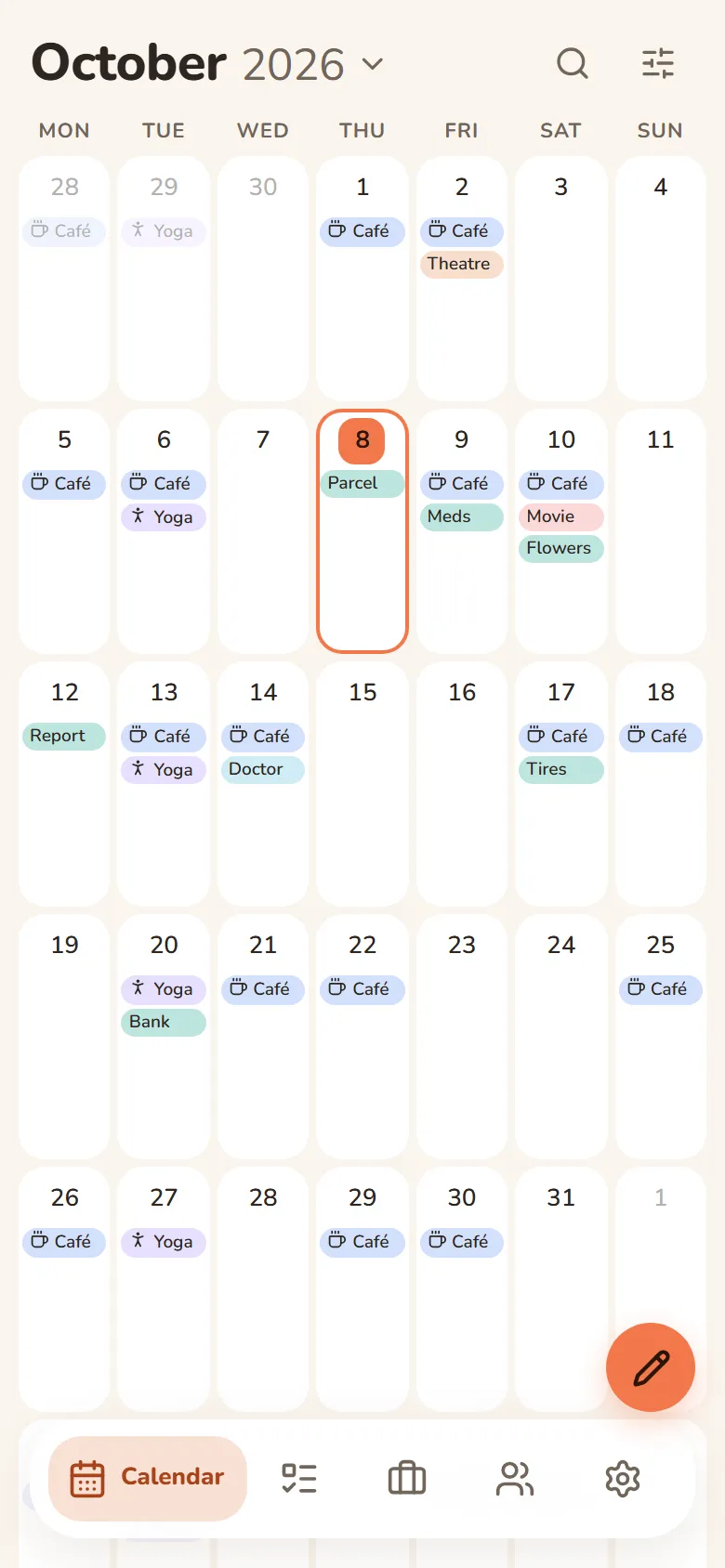
Calendar
All your entries in one place: shifts, classes, tasks and events.
- Day, week, month or yearCalendar“View” iconOn a computer: the tabs on the right above the day
- Find any entryCalendar“Search” magnifierNothing found? You can add a task right there
- Add a shift, class, task or eventCalendar“+ Add”On a phone: tap the day
- Back to todayCalendar“Today” arrowShows up when you flip to other months
- Chips or bars, day fillSettingsAppearanceMonth
- Friends’ calendarsCalendar“Calendars”“Whose calendars are shown”On a phone: in the “View” window
- Print the scheduleCalendar“Calendars”“Print schedule”
- Shifts in your phone’s calendarSettingsAccount and syncPhone calendarGoogle, iPhone or Outlook
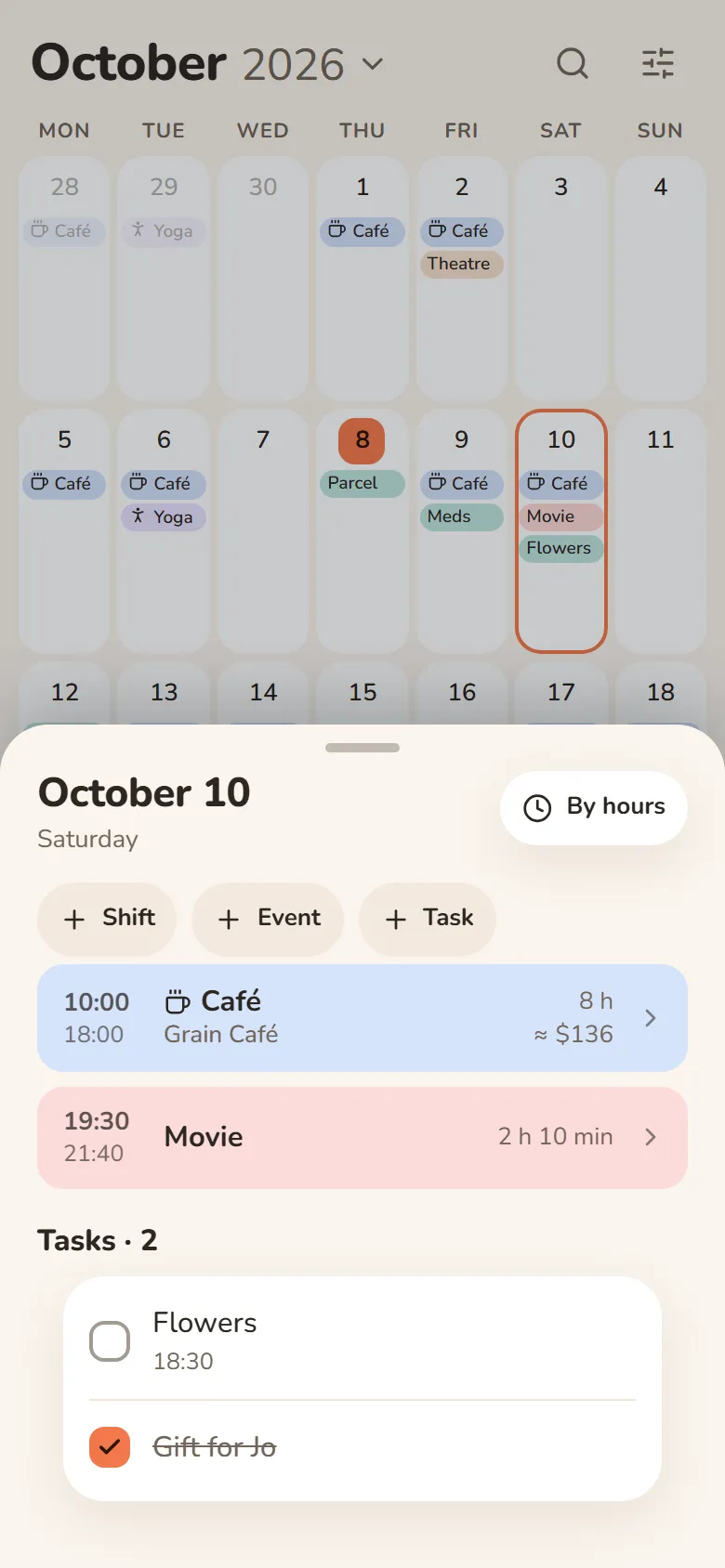
Shifts and earnings
Jobs, ready shifts, the schedule and how much you earned.
- A job: rate, extra pay, paydaysShiftsJobs“Add job”
- A ready shift: time, colour, alarmShiftsShifts“+”Then you put it on the calendar with one tap
- Put shifts on daysCalendar“Mark” pencilpick a shifttap the days
- Several days at oncePencilbutton on the left of the bar“Range” or “In a row”
- By a pattern: 2 on / 2 off, 24 h on / 3 offPencilbutton on the left of the bar“Place shifts”
- Vacation, sick day, day offPencil“One by one”tiles in the bar
- How much you earned this monthShiftsIncome
- An alarm for your shiftSettingsReminders“Shift alarm”Wake-up time is set in the ready shift. Only in the Android and iPhone apps
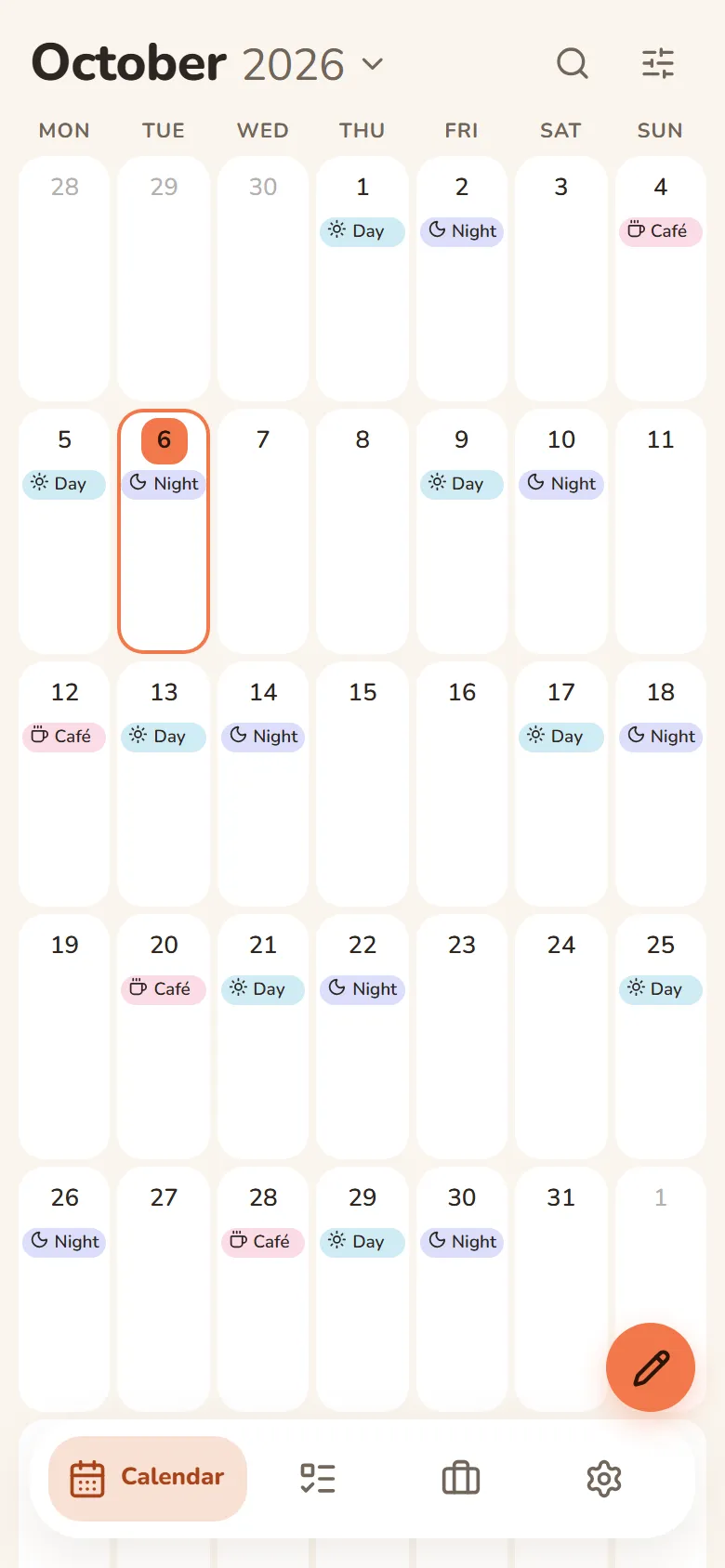
Study
Classes, bell times, homework, exams and a timetable shared with your group.
- Place of study, bell times and termStudyPlaces of studythe place“Bell times”, “Term”Pick the class number and the time fills in
- Add classesStudy“+”“New class” or “Enter classes”
- Classes from a photo of the timetableStudy“+”“Classes from a photo”A photo, a screenshot or a PDF
- For the whole term, week A and week BPencilbutton on the left of the bar“Place classes”“Weeks”
- An exam and a revision planStudy“+”“Exam”“Plan revision”
- HomeworkClass window“Homework”All homework is in Tasks, under “Homework”
- A timetable shared with your groupPlaces of studythe place“Make it shared”“Invite”To join: “Join with a link” in Places of study
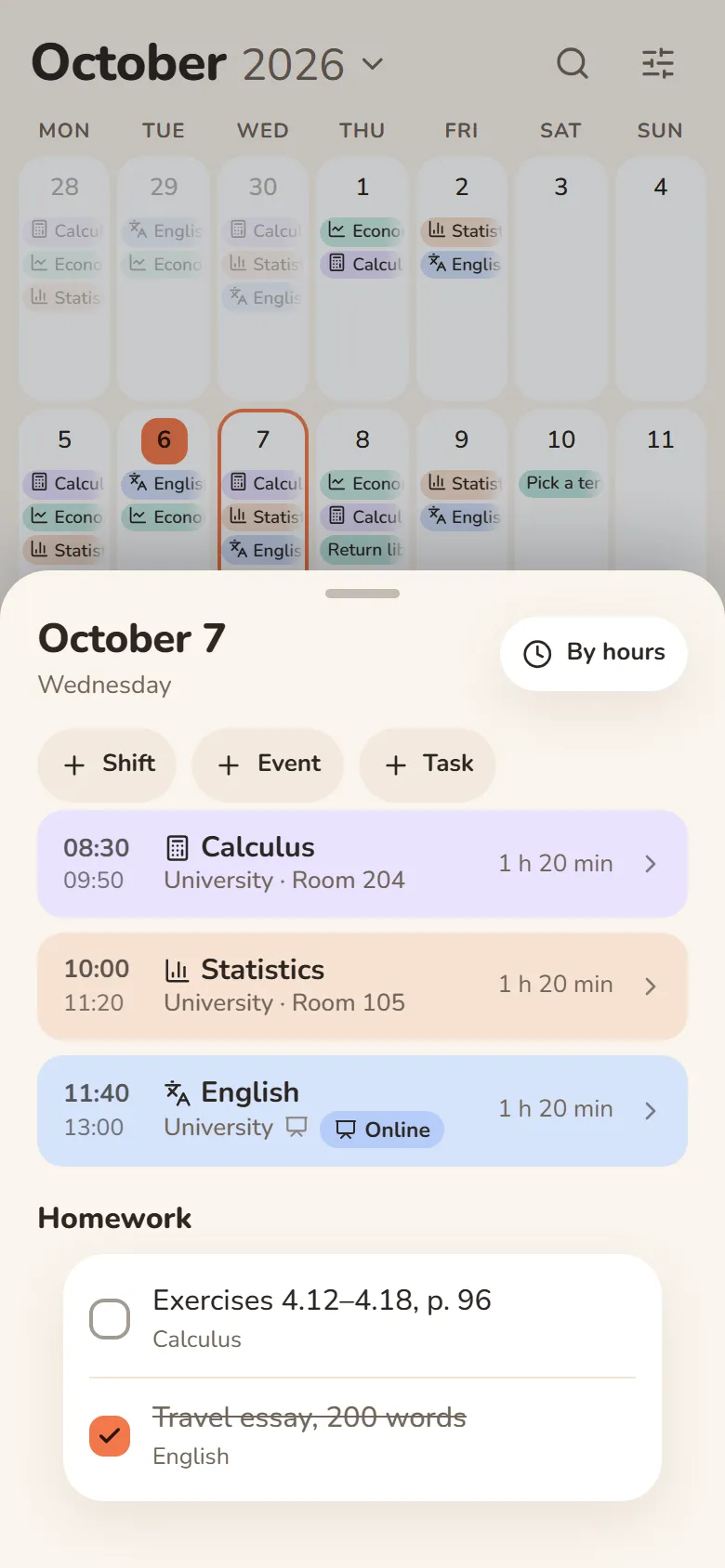
Switching from Weeklie or MyStudyLife? Move your timetable with a PDF
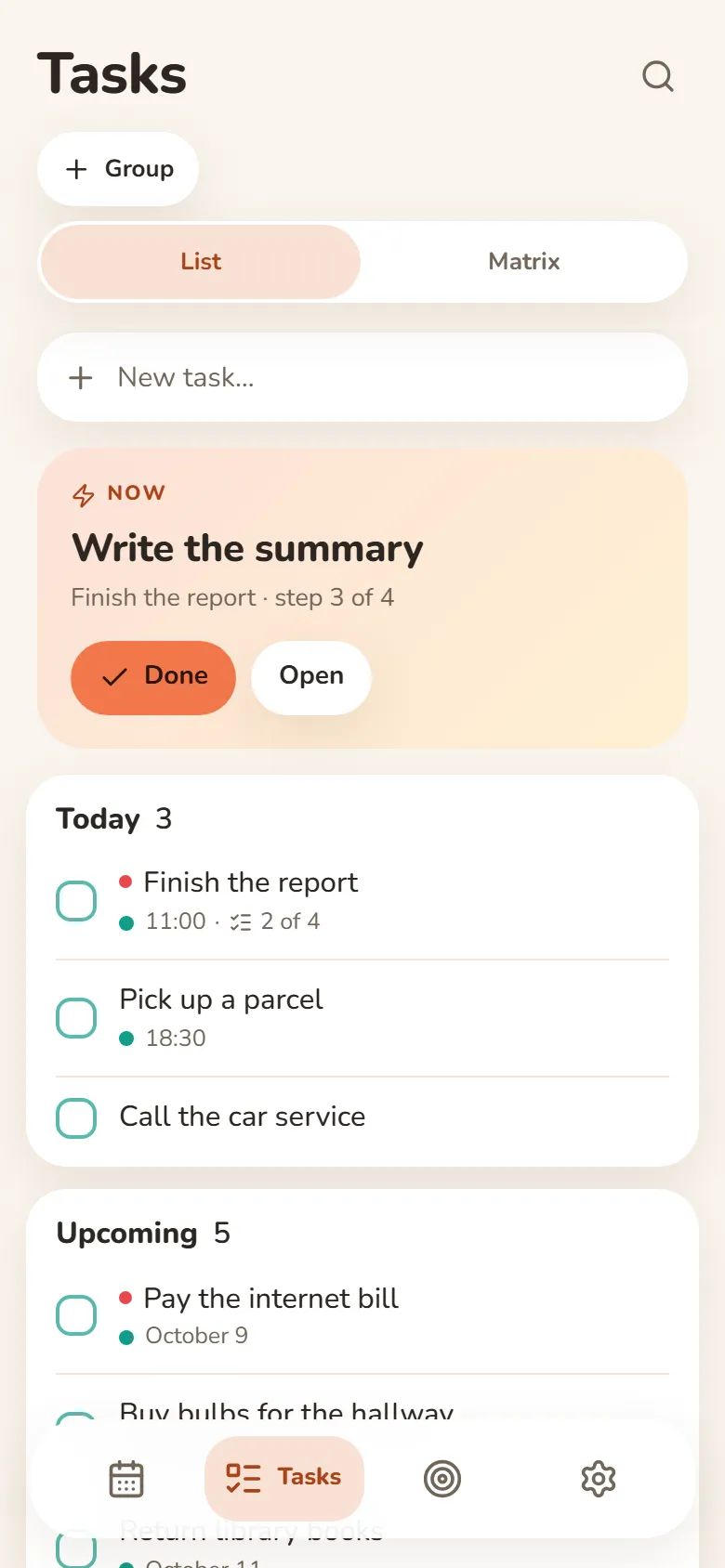
Tasks
Write it down fast, spread it over days and don’t forget.
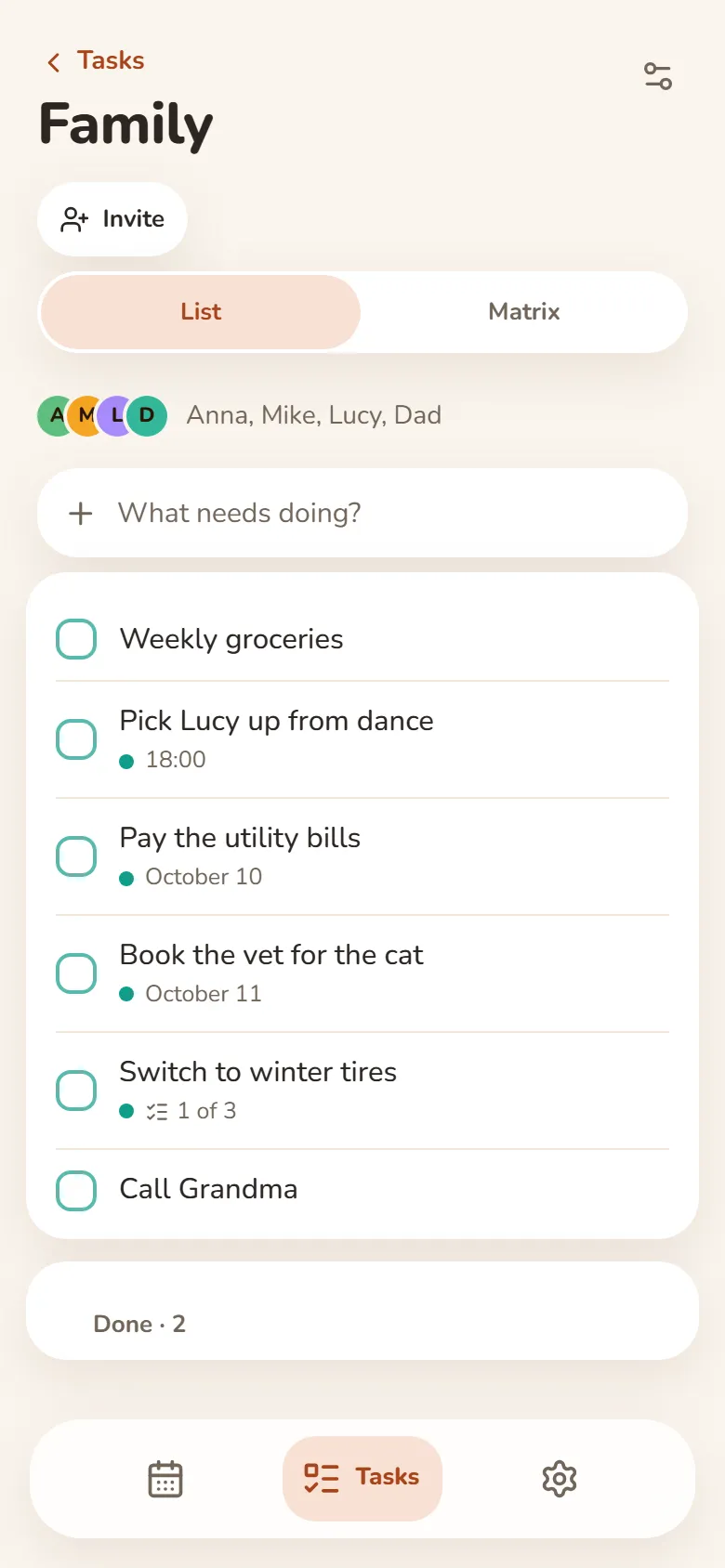
- Write it in one lineTasks“New task…” line“Call mom tomorrow at 3pm” lands on tomorrow, 15:00 by itself
- Steps, repeat and remindersOpen the task“Steps”, “Repeat”, “Remind me”
- Important and urgentTasks“⋯”“Matrix”
- Tasks shared with friendsTasks“⋯”“Group”“New group”
- Done or tomorrowSwipe the task right or leftWhat swiping left does: Settings › Tab bar
Habits
Tick them off every day and watch the streak.
- A new habitHabits“+”Pick a ready one or make your own
- Done or not, a count, “quitting”Habit windowhabit type
- RemindersHabit window“Reminders”To turn them all off: Settings › Reminders › Habits
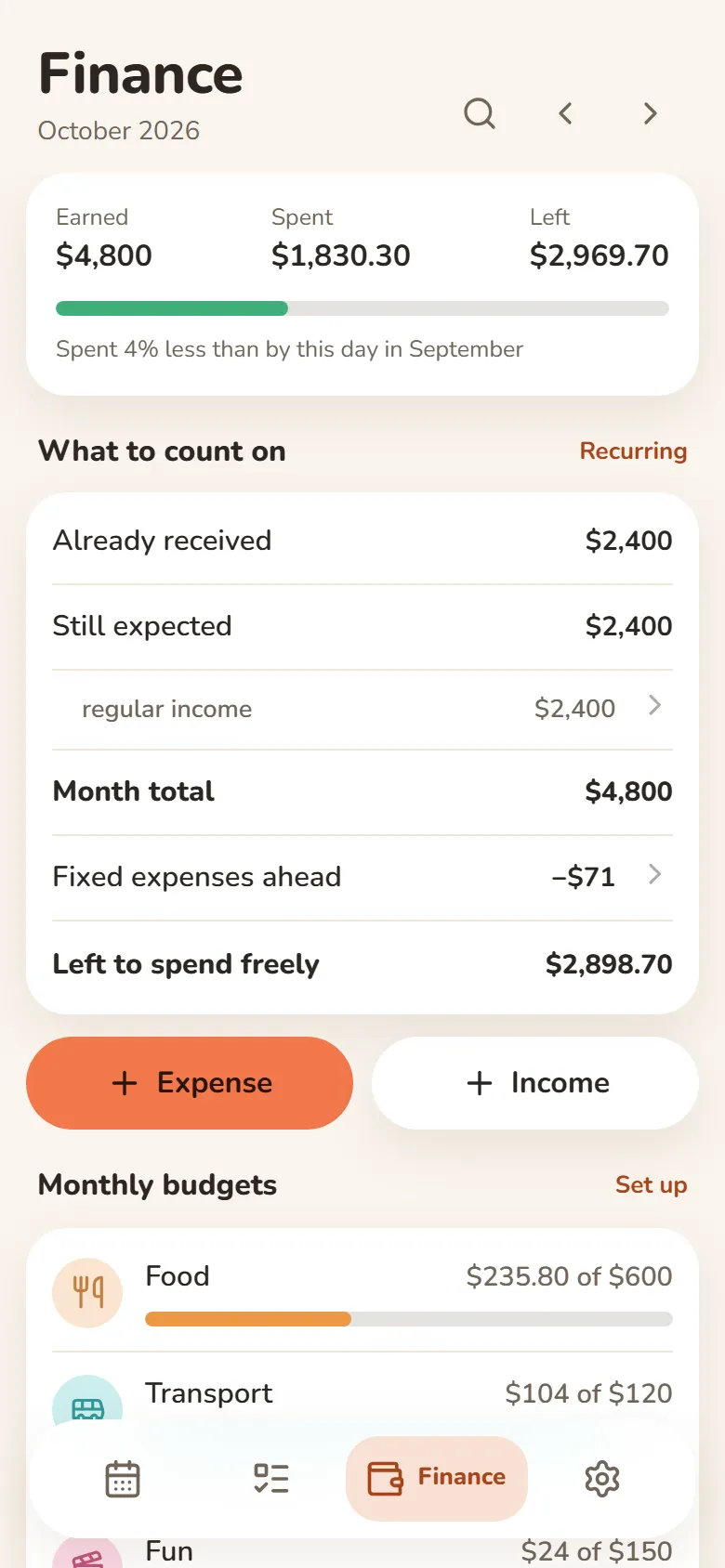
Finance
Expenses, income, budgets and debts.
- An expense or incomeFinance“Expense” or “Income”Income from shifts is counted on its own
- A budget per categoryFinance“Budgets”
- Debts and recurring paymentsFinance“Debts”, “Recurring”
- A bank statementFinance“Import a statement”An Excel or CSV file
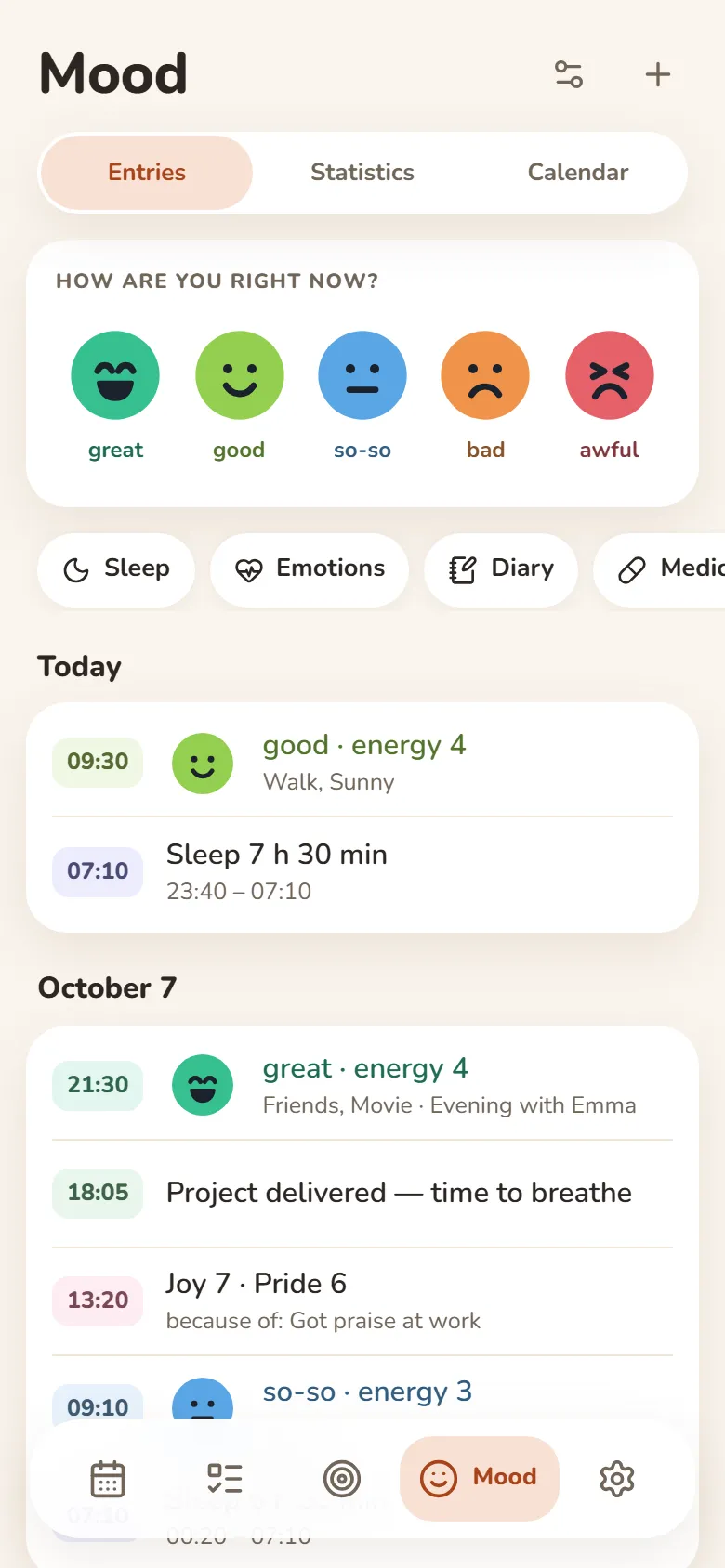
Mood
Mood, sleep, emotions, a journal and medication.
- Mark your moodMood“Entry”“Mood”Or “How are you right now?” in the calendar
- Sleep, emotions, journalMood“Entry”
- Medication and supplyMood“Entry”“Medication”
- What the section showsMoodgear “Set up the section”
- A PDF reportMoodStatistics“PDF report”For example, for your doctor
- Lock it with a passcodeSettingsPrivacy“Passcode on launch”“What to lock”The whole app or only Mood
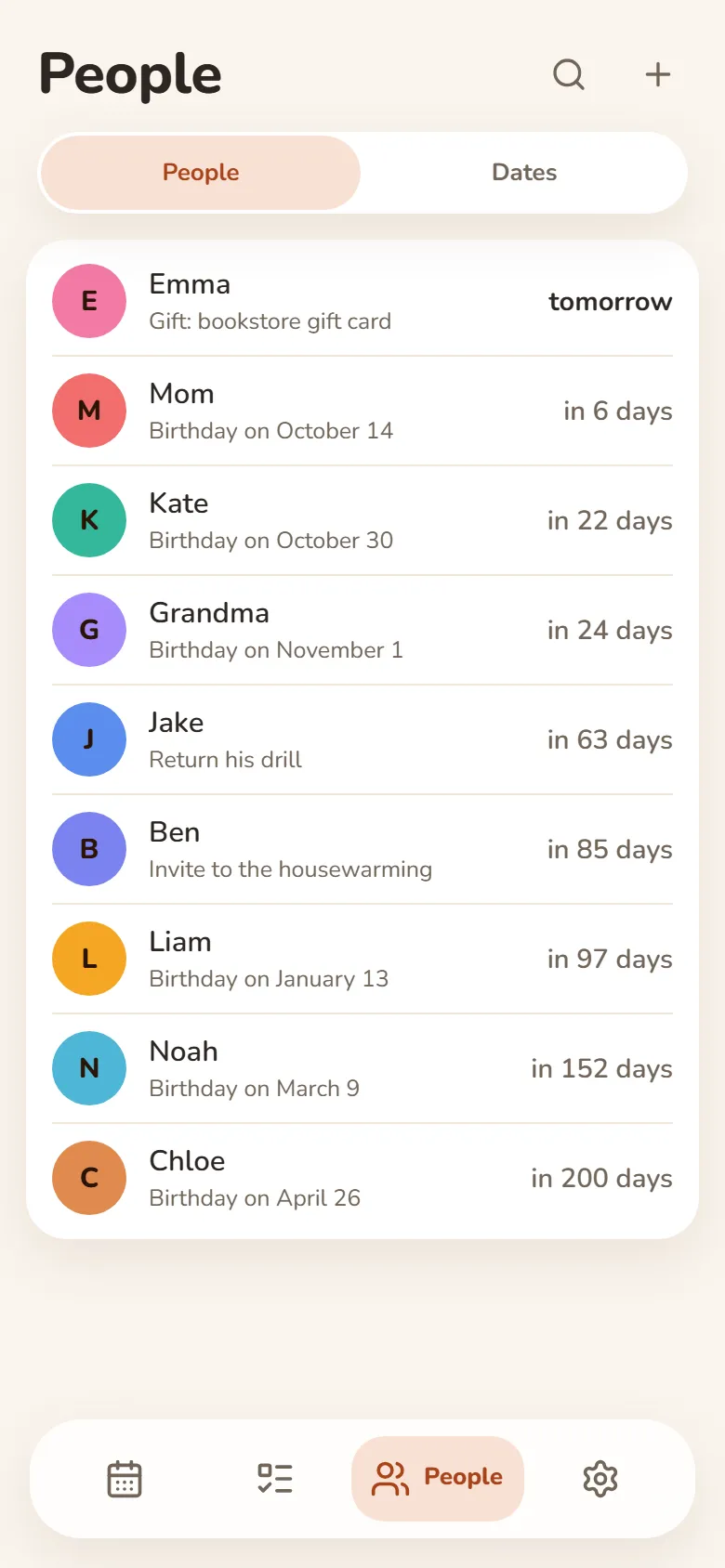
People
Friends, birthdays and important dates.
- A person and their birthdayPeople“+”
- A birthday reminderPerson’s card“Birthday reminder”
- A countdown to a datePeople“Dates”“New date”
- Friends in DayHeart and their calendarsSettingsFriends“Invite a friend”
Telegram bot
Write anything down with a message, without opening the app.
- Write it as textMessage the bot: “shift tomorrow 8–20”, “call mom at 7pm”
- By voice or by forwardingSend the bot a voice message or forward a message
- Today and this week/today/week
- Shift and earnings/shift
- Language and time zone/settings
Bot in your group chat
Classes, homework and changes right in your classmates’ chat.
- Link the chatMake the place sharedadd the bot to the chat/groupThe person who created the place links it
- Morning classes, evening homework, changes, online classes/settings in the chatThe class rep and chat admins choose what the bot posts
- Write homework or a change/dz or “anatomy: read section 5”Understands “no Latin tomorrow”, “chemistry in room 305”
- Classes tomorrow and this week/pairs/week
AI and apps
Claude, ChatGPT, iPhone Shortcuts and Zapier see your shifts, classes and tasks.
- Connect ClaudeSettingsAI and appsClaude“Open Claude”Paste the address, sign in to DayHeart and tap “Allow”
- Connect ChatGPTIn ChatGPT: PluginsAddAdd custom MCP serverAddress: https://dayheart.app/mcp, then “Create as plugin” and “Allow”
- What they see and whether they can add tasksYou choose when connecting, next to “Allow”Mood, health and people are never shared
- Personal link for Zapier, Make and ShortcutsSettingsAI and appsOther apps“Get the link”Anyone with the link sees your schedule; you can reset it
Reminders, sign-in and look
Where to set up everything else.
- Where reminders arriveSettingsReminders“Where to send”Telegram, the app or both
- Morning briefSettingsReminders“Morning brief”
- Sign-in, devices, a copy of your dataSettingsAccount and sync“Import from another app” is there too
- Style, theme, colour, text sizeSettingsAppearance
- Which sections show at the bottomSettingsTab bar
- Language, currency, first day of the weekSettingsLanguage, format, currency
- Update the appSettingsAbout“Update the app”If the new version did not switch on by itself
If something is wrong
Is it free?
Yes, the core is free. Signing in is optional: without it everything stays on this device.
Reminders don’t arrive
Open Settings › Reminders: turn on “Get reminders”, choose “Where to send” and tap “Test”. If reminders go to Telegram, the bot must not be stopped.
I don’t see shifts, classes or tasks in the calendar
Check Calendar › “Calendars” › “Show”. If the whole section is missing, turn it on: Settings › Tab bar.
The shift alarm doesn’t ring
The shift alarm works only in the Android and iPhone apps. Turn it on in Settings › Reminders › “Shift alarm”, set “Wake me at” in the ready shift and tap “Test the alarm”.
My entries aren’t on my other device
Sign in the same way on both devices: Settings › Account and sync. Without signing in, entries stay only where you made them.
How to move data from another app
Settings › Account and sync › “Import from another app”: calendars, contacts, Daylio, Todoist and others, and any spreadsheet.
The new version didn’t show up
Close the app and open it again. If that doesn’t help: Settings › About › “Update the app”.
The bot doesn’t answer in the group chat
Use /dz or reply to the bot’s message. To make it understand ordinary messages, turn on “Understand messages” in the chat’s /settings.
Where to write if something is wrong
Settings › About › “Feedback” or “Contact support”.
Altre sezioni
Turni ed entrateStudio: lezioni e compitiAbitudini e umoreDayHeart in TelegramHome